
Create color stimuli#
By default, stimupy creates grayscale stimuli with intensity values between 0 and 1. stimupy is primarily focused on stimulus geometry - the shapes, patterns, and spatial arrangements that define visual stimuli. While you can create color stimuli by specifying RGB values directly, proper color specification is a complex topic involving color spaces, calibration, and perceptual considerations that are better handled by specialized color science libraries.
This guide shows you basic approaches to adding color to stimupy stimuli, but for rigorous color work, consider using dedicated color libraries like colorspacious, colour-science, or colorspace.
import numpy as np
import matplotlib.pyplot as plt
from stimupy.components import shapes
from stimupy.stimuli import checkerboards
from stimupy.utils import plot_stim
Method 1: Create RGB arrays directly#
When to use: When you need basic color specification with known RGB values.
Steps:
Create your grayscale stimulus
Convert to RGB by expanding dimensions
Assign specific RGB color values to different regions
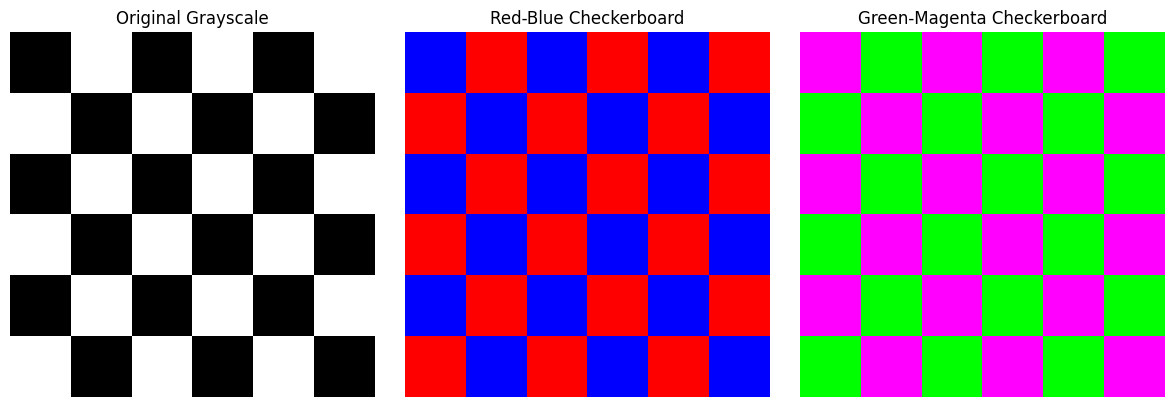
# Step 1: Create base stimulus
checkerboard = checkerboards.checkerboard(visual_size=(6, 6), ppd=20,
                                         check_visual_size=1,
                                         intensity_checks=(0, 1))

# Step 2: Create RGB version
height, width = checkerboard["img"].shape
rgb_img = np.zeros((height, width, 3))

# Step 3: Assign colors based on checkerboard pattern
# White squares -> Red
# Black squares -> Blue
mask = checkerboard["img"] > 0.5
rgb_img[mask] = [1, 0, 0]      # Red for white squares
rgb_img[~mask] = [0, 0, 1]     # Blue for black squares

# Display
plt.figure(figsize=(12, 4))
plt.subplot(1, 3, 1)
plt.imshow(checkerboard["img"], cmap="gray")
plt.title("Original Grayscale")
plt.axis('off')

plt.subplot(1, 3, 2)
plt.imshow(rgb_img)
plt.title("Red-Blue Checkerboard")
plt.axis('off')

plt.subplot(1, 3, 3)
# Alternative: Green-Magenta
rgb_img2 = np.zeros((height, width, 3))
rgb_img2[mask] = [0, 1, 0]     # Green
rgb_img2[~mask] = [1, 0, 1]    # Magenta
plt.imshow(rgb_img2)
plt.title("Green-Magenta Checkerboard")
plt.axis('off')

plt.tight_layout()
plt.show()
Method 2: Use masks for multi-color stimuli#
When to use: When you have complex stimuli with multiple regions that need different colors.
Steps:
Create stimulus with mask
Create RGB array
Use mask to assign different colors to each region
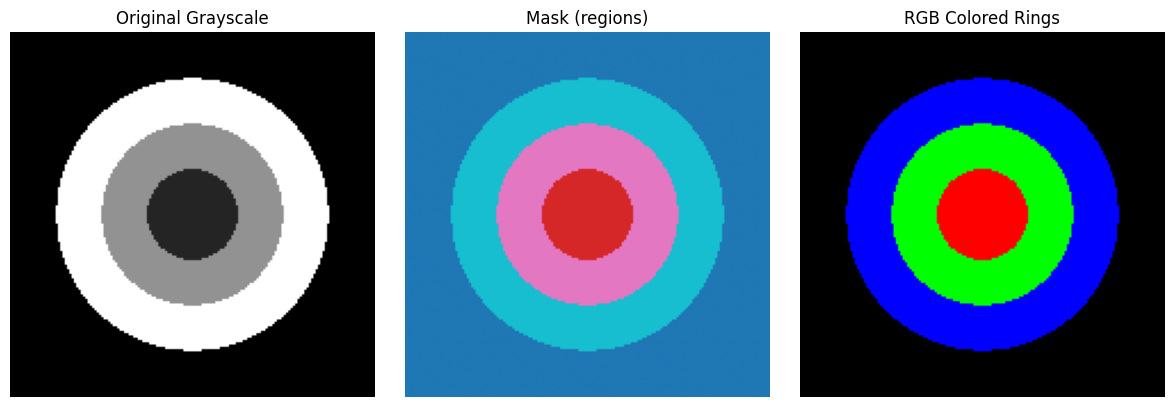
# Step 1: Create stimulus with multiple regions
from stimupy.components.radials import rings

ring_stim = rings(visual_size=(8, 8), ppd=20,
                  radii=(1, 2, 3),
                  intensity_rings=(0.2, 0.5, 0.8),
                  intensity_background=0.1)

# Step 2: Create RGB array
height, width = ring_stim["img"].shape
rgb_rings = np.zeros((height, width, 3))

# Step 3: Assign different colors to each ring
mask = ring_stim["ring_mask"]

# Background (mask == 0) -> Black
rgb_rings[mask == 0] = [0, 0, 0]
# Ring 1 (mask == 1) -> Red
rgb_rings[mask == 1] = [1, 0, 0]
# Ring 2 (mask == 2) -> Green
rgb_rings[mask == 2] = [0, 1, 0]
# Ring 3 (mask == 3) -> Blue
rgb_rings[mask == 3] = [0, 0, 1]

# Display
plt.figure(figsize=(12, 4))
plt.subplot(1, 3, 1)
plt.imshow(ring_stim["img"], cmap="gray")
plt.title("Original Grayscale")
plt.axis('off')

plt.subplot(1, 3, 2)
plt.imshow(ring_stim["ring_mask"], cmap="tab10")
plt.title("Mask (regions)")
plt.axis('off')

plt.subplot(1, 3, 3)
plt.imshow(rgb_rings)
plt.title("RGB Colored Rings")
plt.axis('off')

plt.tight_layout()
plt.show()
Method 3: Color stimuli with transparency#
When to use: When you need to overlay colored stimuli or create transparent effects.
Steps:
Create RGBA array (Red, Green, Blue, Alpha)
Set alpha channel based on stimulus properties
Use for overlays or transparent effects
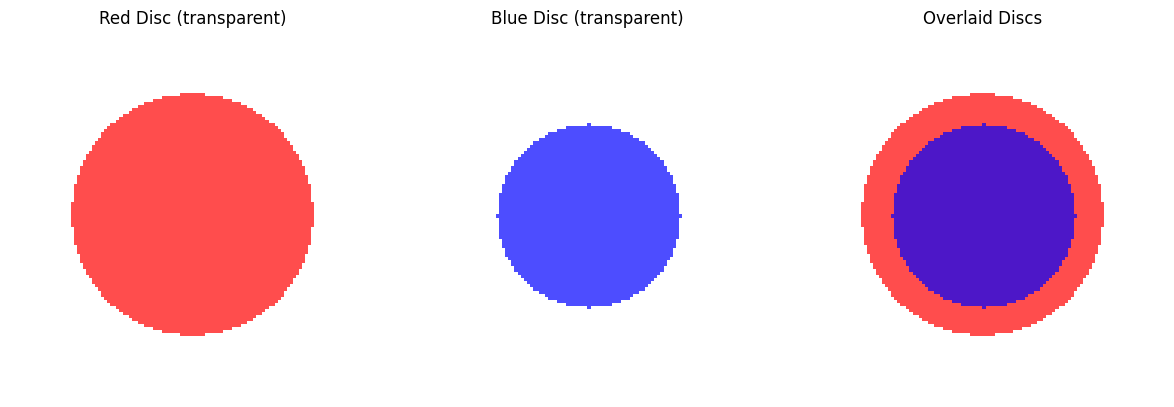
# Step 1: Create base stimuli
disc1 = shapes.disc(visual_size=(6, 6), ppd=20, radius=2,
                    intensity_disc=1, intensity_background=0)

disc2 = shapes.disc(visual_size=(6, 6), ppd=20, radius=1.5,
                    intensity_disc=1, intensity_background=0,
                    origin="center")

# Step 2: Create RGBA arrays
rgba1 = np.zeros((*disc1["img"].shape, 4))
rgba2 = np.zeros((*disc2["img"].shape, 4))

# Red disc with transparency
mask1 = disc1["ring_mask"] == 1
rgba1[mask1] = [1, 0, 0, 0.7]  # Semi-transparent red

# Blue disc with transparency
mask2 = disc2["ring_mask"] == 1
rgba2[mask2] = [0, 0, 1, 0.7]  # Semi-transparent blue

# Step 3: Display overlays
plt.figure(figsize=(12, 4))

plt.subplot(1, 3, 1)
plt.imshow(rgba1)
plt.title("Red Disc (transparent)")
plt.axis('off')

plt.subplot(1, 3, 2)
plt.imshow(rgba2)
plt.title("Blue Disc (transparent)")
plt.axis('off')

plt.subplot(1, 3, 3)
# Overlay both discs
plt.imshow(rgba1)
plt.imshow(rgba2)
plt.title("Overlaid Discs")
plt.axis('off')

plt.tight_layout()
plt.show()
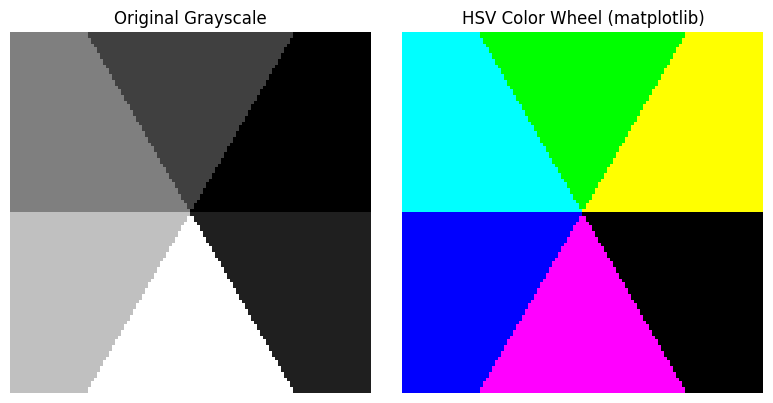
Method 4: Using color space conversions#
When to use: When you need to work with specific color spaces or chromaticity coordinates.
Important: This example uses matplotlib’s HSV implementation, but for rigorous color science work, use dedicated libraries like colorspacious, colour-science, or colorspace that provide proper chromaticity-to-RGB conversions, color space transformations, and color appearance models.
Steps:
Create stimulus geometry
Use a color library to convert from desired color space to RGB
Apply the RGB values to your stimulus
from matplotlib.colors import hsv_to_rgb

# Step 1: Create angular segments with different hues
from stimupy.components.angulars import segments

segment_stim = segments(visual_size=(6, 6), ppd=20,
                       angles=(0, 60, 120, 180, 240, 300, 360),
                       intensity_segments=(0.2, 0.4, 0.6, 0.8, 1.0, 0.3),
                       intensity_background=0.1)

# Step 2: Create HSV array (basic matplotlib conversion)
height, width = segment_stim["img"].shape
hsv_img = np.zeros((height, width, 3))

# Assign different hues to each segment
mask = segment_stim["segment_mask"]
for i in range(1, 7):  # 6 segments
    segment_mask = mask == i
    hue = (i - 1) / 6  # Hue from 0 to 1
    hsv_img[segment_mask] = [hue, 1, 1]  # Full saturation and brightness

# Step 3: Convert to RGB using matplotlib (basic conversion)
rgb_img = hsv_to_rgb(hsv_img)

# Display
plt.figure(figsize=(8, 4))
plt.subplot(1, 2, 1)
plt.imshow(segment_stim["img"], cmap="gray")
plt.title("Original Grayscale")
plt.axis('off')

plt.subplot(1, 2, 2)
plt.imshow(rgb_img)
plt.title("HSV Color Wheel (matplotlib)")
plt.axis('off')

plt.tight_layout()
plt.show()
Specifying chromaticities#
Note
stimupy focuses on geometry, not color science.
Workflow for specifying chromaticies of stimupy stimuli:
Geometry specification: Use
stimupyto create the geometric stimulus structureChromaticity specification: Determine chromaticity coordinates (xy, Lab, etc.) that you want the stimulus/different regions to have
Convert to RGB using dedicated color science libraries
e.g.,
colorspacious,colour-science, orcolorspacefor proper color space conversionsMonitor calibration: The conversion of RGB <-> chromaticity is different for different monitors, depends heavily on monitor calibration and viewing conditions
Apply RGB values to the stimulus using the methods above
Validate colors with calibrated equipment
Color specification reference#
Basic RGB values (for display on typical monitors):
Red:
[1, 0, 0]Green:
[0, 1, 0]Blue:
[0, 0, 1]Yellow:
[1, 1, 0]Cyan:
[0, 1, 1]Magenta:
[1, 0, 1]White:
[1, 1, 1]Black:
[0, 0, 0]
RGBA values: Same as RGB plus alpha (transparency)
Semi-transparent red:
[1, 0, 0, 0.5]
Choosing the right method#
Method |
Best for |
Pros |
Cons |
|---|---|---|---|
RGB arrays |
Basic color specification |
Simple, direct control |
No color science validation |
Mask-based |
Multi-region stimuli |
Clean separation, reusable |
Requires planning |
RGBA/transparency |
Overlays, complex compositions |
Advanced effects |
More complex |
Color space conversion |
Scientific color work |
Proper color science |
Requires additional libraries |
For experimental work: Combine stimupy for geometry with dedicated color science libraries for proper chromaticity specification.